


Saturday, November 14, 2009

Back to Blog

It has been 6 months since my last post about deactivating facebook account. I don't know for sure what makes me so difficult to write on my blog recently. Although that my browser homepage is my blog, the page is always the same in these few months. So today, I've decided that I have to write again about my life, my story, my struggle to reach the victory.

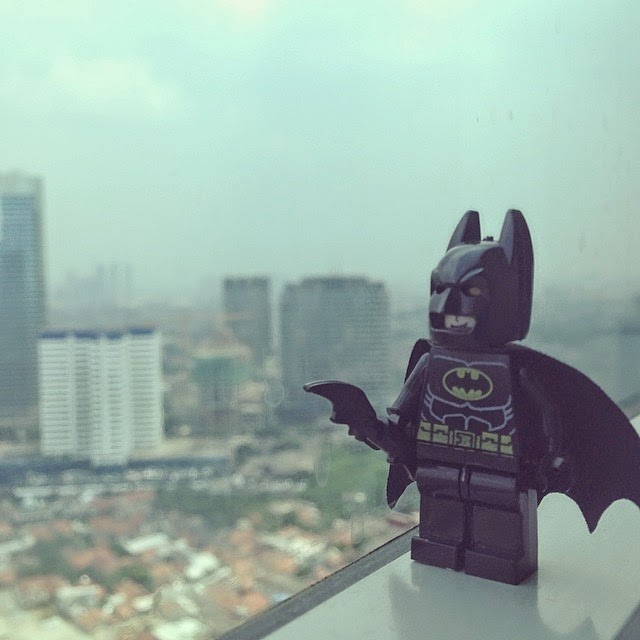
Fig. 1 Kegigihan Meraih Kemenangan (Struggle to Reach Victory)


Saturday, May 09, 2009

Deactivating Your Facebook Account, Why Not??

Recently I have deactivated my facebook account. Yeah, somehow I just want to do it. Maybe I just don't want to be the one who's addicted too much with this social networking site. And it works...

For you who want to try to deactivate your facebook account, you can do this steps as follow:

  1. First of all, log in to your facebook account
  2. Find "setting" and choose the "account setting" so that you find a list of setting menu
  3. Look for "Deactivate account" and click on "deactivate"
  4. Next, you are in the deactivation page, where you can choose one reason "Why are you deactivating". My suggest, you could choose
  5. "This is temporary, I'll be back" (if you're not strong enough to remove facebook from your life) and
  6. never mark the option "opt out of receiving future emails from facebook" if you still want receive updates from the groups that you're joined, invitation, and others, by the time you want to start to use facebook again
  7. If you have made your decision, click on "Deactivate my account"
  8. And you'll go to the Security Check Page where you have to type two security words, click on submit
  9. Remember that once you're submitting the security code, you'll get yourself has deactivated your own facebook account
  10. You'll receive an email notification of your facebook deactivation process

Ok... that's all for tonight.. have a nice weekend without facebook like me.

Monday, April 27, 2009

Arki Rifazka on National IT Expo Riau 2009


Yesterday I've been requested by the committee of the NIX (National IT Expo) DPD Riau APKOMINDO to give presentation about Facebook, the social networking site that is very popular nowadays

Actually I am coming as a substitute speaker, as the speaker who should fill material is suddenly canceled to attend to the event. So I finally contacted by the committee to be the speaker.

I submit that the material really common materials, ranging from a glimpse of the facebook and its development, and of course how they achieved success at this time.

In addition, as a complementary material, I also give tips safe use facebook, the potential threat of piracy information that can be done by facebook, until in the end of the show, we discuss many of the features facebook including the graphic user interface itself.

Questions from the audience quite a lot, and the audience is very diverse. Men, Women, high school students, and college students are curious about the engine that sit in on the facebook event. In fact, the event also had me create a more exciting with the demonstration using one of the participants account. He also once "pasrah" when I change his account settings, add a female friend through the features "friends you may know", and other things etc.. But instead, I give him a shirt from HP in order he answered the question correctly. And of course, he deserved that merchandise for his kindness to give his account to be used on the stage.


Thursday, April 23, 2009

Businessmen Jobs

Yesterday, April 22nd, 2009
Pekanbaru


April 17th, 2009
Jakarta - Facilitating the Visitation of University of Riau to the HP Head Office

April 5th, 2009
Medan


April 3rd, 2009
Pematang Siantar


April 1st, 2009
Nanggroe Aceh Darussalam


March 24th, 2009
Bandung - Attending the Alumni Gathering


March 2009
Belawan Port, North Sumatera


Tuesday, February 17, 2009

Official Press Conference

This is an official press conference of Arki Rifazka.
Medan, February 17th, 2009

With all regards,
I'm Arki Rifazka, the Director of PT. Camrifone, the authorized partner of HP here to say:

  1. PT. Camrifone is still keep our commitment to HP as the principal of our business
  2. PT. Camrifone is ready to show any evidence and data that we only sell the Academic Society Notebook to the Academician Society in Riau
  3. PT. Camrifone not perform any illegal actions in marketing their Laptops as that several ads on the Internet that also sell Notebooks with the same brand, but the price is relatively cheaper
  4. PT. Camrifone in selling the Academic Society Notebooks still respects the principles of checks and re-check and always obey the terms and conditions that apply to the Consumer, in this case this procedures is devoted to the Students, Lecturers / Staff, and Higher Education Students
These are the statement made by Arki Rifazka as the Director of PT. Camrifone.

Let's makes a healthy trade competition with facts, data, and the evidences clearly.

Medan, February 17th 2009


Arki Rifazka

Friday, February 13, 2009

Configuring Bluetooth Modem on My Dopod 838 pro

Abstract
Finally, I could set my lovely Dopod 838 pro as a wireless Bluetooth modem for the Telkomsel Flash service. Please check these general settings from me.

---------------------

As you know friends, communication over Bluetooth is more comfortable. It does not require a cable connection between the two devices (a laptop and PDA). Honestly, this is so useful for you who likes traveling.

Connecting the two devices over BT will differ according to the BT control application installed on your PC. Nevertheless, the procedure should be virtually the same. There are four main steps:

1. Configuring the wireless modem on your PDA
2. Pairing the devices, ideally using a wizard in the BT application on the PC and using the modem on the PDA
3. Configuring the modem using an AT string
4. Creating a new internet connection using the modem

Let's start with the first step: Configuring the wireless modem on your PDA.
First of all, you'll need to enable/run Wireless Modem:

  1. Start > Programs > Wireless Modem.
  2. Select "USB" as your connection type.
  3. If you need to configure the APN setting, Menu > APN Setting > check "Preset GPRS connections" and fill in the APN value with "Flash"
  4. Creating new data account on your PDA: Start > Setting > Connections then tap the "Connections" icon
  • Tap "Advanced" > Select Networks > New (find "...the internet should connect using")
  • Create new settings "TelkomselFlash"
  • Open Tab "Modem" and tap new
  • set the name for the connection with "Flash"
  • Select a modem to Cellular Line (GPRS, 3g)
  • Set the Access Point Name (APN) to "FLASH"
  • let the username, password, and domain blank, and tap finish
Next step: pairing the devices and using the modem on the PDA. For that, you need fully functional Bluetooth on the PC and activated Bluetooth module on the Wizard in discoverable mode.


Turn on Bluetooth Devices

Now, run a connection wizard on the PC (New Connection). I am going to show you the procedure in detail, so I opted for the Custom Mode.


In the next step, all available Bluetooth devices are identified. If your Pocket PC does not display, check to make sure if Bluetooth is active and set to visible (discoverable by another device).


Bluetooth is active and set to visible

The device is then checked for supported services. In our case, set the service to Dial-up Networking.

Choose the Dial-up networking service

When you click Next, the devices will try to pair.

Thus, if everything goes well, the PC should display a window asking for a PIN. You can type any number to fill in the bluetooth passkey, for an example :1234; noted that you need to remember these numbers because you will have to enter the same code in your PDA phone. This will protects you against intruders.

Bluetooth passkey

On the pocket device, first confirm that you realy want to communicate with the PC (Yes) and then enter the same Bluetooth passkey PIN.


Enter the same Bluetooth passkey

The modem will be installed on the PC and the pocket device will display a list of services to be used by the PC. Check the box at Serial Port and tap on Finish.


We are done with the PDA for the time being but need to do some more setting on the desktop PC. A Bluetooth driver from Toshiba offers comfortable and quick configuration of the newly connected modem.


Dial settings are:
  • Dial-up connection name : Telkomsel Flash
  • Telephone Number : *99#
  • username : empty (left blank)
  • pass : empty (left blank)
  • click Finish

That's it. Now select Start -> Settings -> Network connections -> Your new connection and then Dial and you should be connected to the internet within a few seconds.

Errors and error messages
However, things may go wrong and you may encounter errors. Windows usually provides at least the error number, so that you have something to start with.
  • Error 633 - modem already in use - check if the modem mode is active. If yes and it is not working, perform a software reset and try connecting again.
  • Error 692 - modem or port hardware error - check if the device is in the is in the airplane mode (deactivated GSM module)
  • Error 734 - PPP control protocol was terminated - check if you have set the APN correctly and whether the initialisation string is correct (that's the expression that begins with AT+...)
That's all folks for the review...

References:
  1. http://www.pdagold.com/articles/detail.asp?a=269
  2. http://www.macclubindonesia.com/forums/archive/index.php/t-8684.html
  3. http://www.geekzone.co.nz/chiefie/1924

Wednesday, February 11, 2009

Facebook Chat Without Browser

Are you a facebook-holic? do you like all the features on facebook? Searching friends, gaming online, and what about having a chat to others on facebook??

Talking about chat on facebook, you may know that the reliability of the facebook chat on browser is not really good. The chat board sometimes goes down in connection. And of course that's the biggest problem from the facebook chat on the browser.

So what if now you can do facebook chat on its own interface board? I think it would be so cool enough for you to use it. You could follow these steps below to chat on facebook without any browser:

1. First of all, you have to install the pidgin messenger. Pidgin messenger is an IM provider and it's all free to use. You can get the installer from this following site:

2. After you Install your pidgin software you may download the facebook plugin for your installed pidgin. Because the facebook plugin is exclude from your installed pidgin. You can get the plugin from this address below:


3. Run your pidgin, and then choose the facebook service

4. Enter your username and password, and also your appearance name on facebook (if you want to change your default name)

5. You could start to chat on pidgin now and have a nice chat!!!

source: ahlul.bang

Original Design by : x-template.blogspot.com.

Modified by :...